
What is Tkinter?
Tkinter is the standard Graphical User Interface (GUI) library for Python. It provides tools to create desktop applications with windows, buttons, text boxes, and other common interface elements. Tkinter itself is a thin object-oriented porting of the Tcl/Tk GUI toolkit and is included with most Python distributions, this makes it a go-to option for beginners and professionals alike.
Why Use Tkinter?
Tkinter is widely used because of its simplicity and other notable benefits such as:
- Ability to build simple desktop applications quickly.
- Prototyping GUI elements without needing external libraries.
- Creating fast Python-based tools with graphical interfaces (e.g., calculators, form apps, file managers).
- Learning GUI programming with minimal setup and dependencies.
- Works on Windows, macOS, and Linux from one code base
- Integration with Python, as it comes built-in with Python, no extra installation needed.
- Being event-driven and supporting event handling and callback functions.
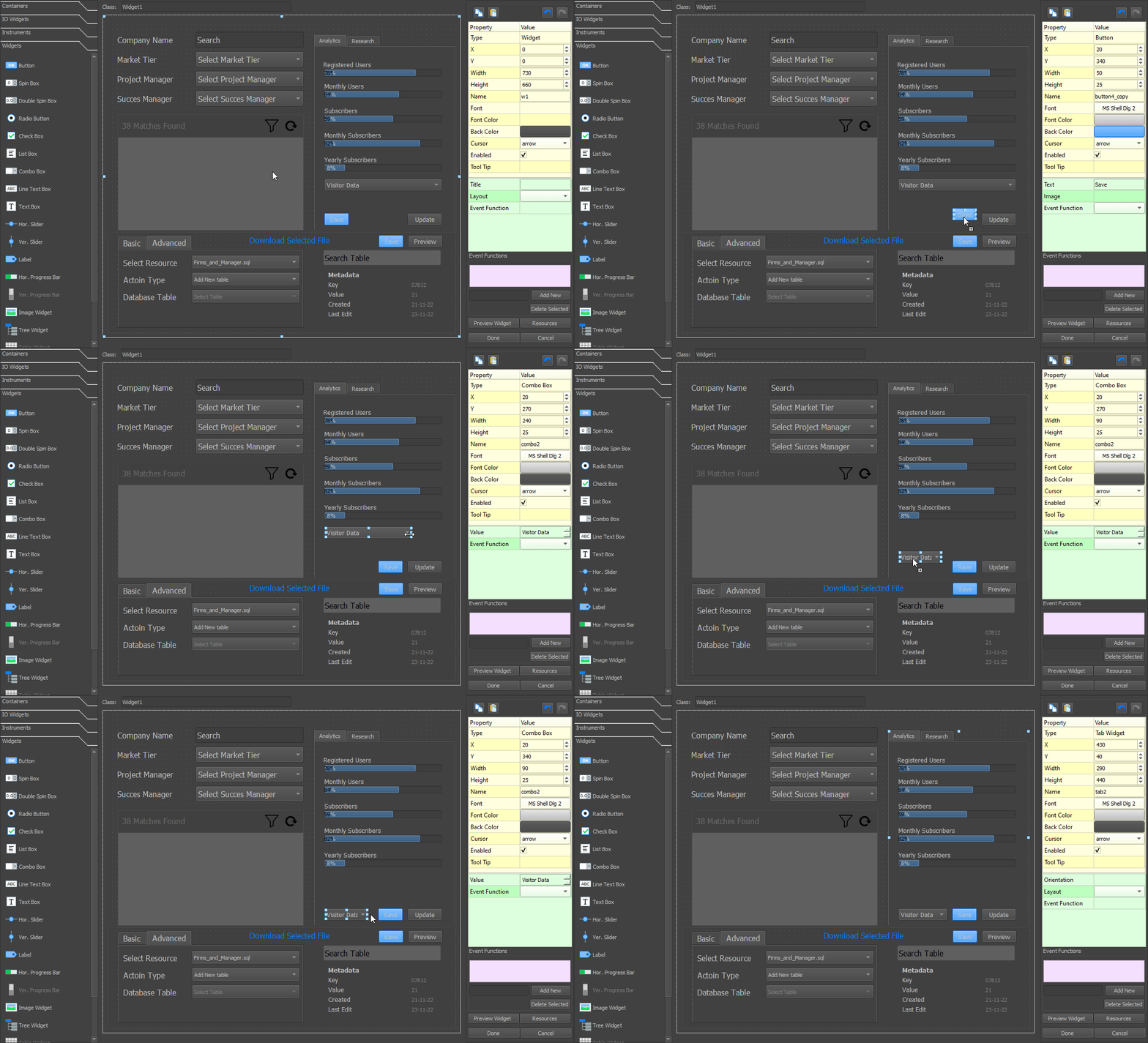
The Tkinter Designer along with our Custom Tkinter, Flet, MD Python, MatDeck Script, Kivy and PySide2 Designers are all a part of drag and drop MD Python Designer.
The examples below have been made to help new programmer become familiar with Tkinter and showcase key functionality, our Tkinter GUI Designer generates all the code needed for a Tkinter GUI and lets you focus on designing the widget rather than making it.
Tkinter Examples
Tkinter Button Click Event
This example creates a simple button that, when clicked, calls a function and prints a message to the console. It’s a basic but essential interaction pattern in Tkinter, demonstrating how GUI elements like buttons are linked to backend logic via command callbacks.
import tkinter as tk  # Import tkinter module for GUI creation

# Function that will be called when the button is clicked
def on_click():
    print("Button was clicked!")  # Print a message to the console

# Create the main application window
root = tk.Tk()
root.title("Button Click Event")  # Set window title

# Create a Button widget and pack it into the window
# 'command' links the button to the on_click function
tk.Button(root, text="Click Me", command=on_click).pack(padx=20, pady=20)

# Start the Tkinter event loop
root.mainloop()
Tkinter Entry to Label Update
In this example, users can type text into an Entry field, and when they press the button, the entered text appears in a Label. This demonstrates how to retrieve input from widgets, dynamically update other elements, and create interactive UIs.
A more complex scientific calculator which was made with our drag and drop Tkinter GUI Designer can be found at https://labdeck.com/python-designer/tkinter-gui-designer/

import tkinter as tk  # Import tkinter module

# Function to update label with text from entry
def update():
    label.config(text=entry.get())  # Get text from entry and set it as label text

# Create main window
root = tk.Tk()
root.title("Entry to Label")

# Create Entry widget for user input
entry = tk.Entry(root)
entry.pack()

# Create Button that triggers update() when clicked
tk.Button(root, text="Submit", command=update).pack()

# Create a Label to display output
label = tk.Label(root, text="Waiting for input...")
label.pack()

# Start the GUI loop
root.mainloop()
Tkinter Simple Calculator
This example builds a mini calculator interface using a grid of buttons and an Entry widget for displaying expressions. It uses the eval() function to evaluate mathematical input and handles basic arithmetic. It also demonstrates binding multiple buttons to the same logic with slight variation.
import tkinter as tk  # Import tkinter

root = tk.Tk()
root.title("Simple Calculator")  # Set window title

# String variable to hold the expression
expr = tk.StringVar()

# Function to append characters to the expression
def press(val):
    expr.set(expr.get() + val)

# Function to evaluate the expression
def calculate():
    try:
        expr.set(str(eval(expr.get())))  # Safely evaluate expression
    except:
        expr.set("Error")  # Display error if invalid

# Function to clear the expression
def clear():
    expr.set("")

# Create entry to show current input/result
tk.Entry(root, textvariable=expr, justify="right", font=("Arial", 16)).grid(row=0, column=0, columnspan=4)

# Calculator button layout
buttons = [
    "7", "8", "9", "/",
    "4", "5", "6", "*",
    "1", "2", "3", "-",
    "0", ".", "=", "+"
]

# Create and place each button
for i, char in enumerate(buttons):
    if char == "=":
        action = calculate  # Assign calculate function to "="
    else:
        action = lambda c=char: press(c)  # Assign press function for digits/operators
    tk.Button(root, text=char, width=5, height=2, command=action).grid(row=1+i//4, column=i%4)

# Clear button
tk.Button(root, text="C", width=22, command=clear).grid(row=5, column=0, columnspan=4)

root.mainloop()
Tkinter Table with Treeview
This example uses ttk.Treeview to display tabular data (like a spreadsheet). It includes column headers, alignment, and a vertical scrollbar. This is ideal for displaying structured datasets such as CSV files, user lists, or scores.
import tkinter as tk
from tkinter import ttk  # Import themed tkinter widgets

root = tk.Tk()
root.title("Treeview Table")

# Define table columns
cols = ("ID", "Name", "Score")

# Create Treeview widget with headings
tree = ttk.Treeview(root, columns=cols, show="headings")

# Define headings and column widths
for col in cols:
    tree.heading(col, text=col)  # Set heading text
    tree.column(col, width=100)  # Set column width

# Insert sample rows into the table
data = [(1, "Alice", 90), (2, "Bob", 85)]
for row in data:
    tree.insert("", tk.END, values=row)  # Insert each row

tree.pack(fill="both", expand=True)  # Expand to fill available space

root.mainloop()
Tkinter Canvas Drawing Shapes
This code introduces the Canvas widget, which allows you to draw 2D shapes, such as rectangles, ovals, and text. Canvases are useful for custom drawings, charts, or even basic games. The example demonstrates positioning and layering of graphical elements.
import tkinter as tk

root = tk.Tk()
root.title("Canvas Drawing")

# Create Canvas widget with set width, height, and background
canvas = tk.Canvas(root, width=300, height=200, bg="white")
canvas.pack()

# Draw a rectangle
canvas.create_rectangle(50, 50, 250, 150, outline="black", width=2)

# Draw an oval inside the rectangle
canvas.create_oval(70, 60, 230, 140, fill="skyblue")

# Add text in the center
canvas.create_text(150, 100, text="Canvas Example", font=("Arial", 12))

root.mainloop()
Tkinter Menubar with Commands
This example demonstrates how to create a native-style menubar with File and Help menus. Each menu item is linked to a specific command, such as exiting the app or showing an info dialog. Menus are essential for creating professional, user-friendly applications.
import tkinter as tk
from tkinter import messagebox  # Import message box for alerts

root = tk.Tk()
root.title("Menu Example")

# Function to show About message
def show_about():
    messagebox.showinfo("About", "This is a Tkinter menu example.")

# Create the main menu object
menu = tk.Menu(root)

# Create a submenu under "File"
filemenu = tk.Menu(menu, tearoff=0)
filemenu.add_command(label="Exit", command=root.quit)  # Exit the app
menu.add_cascade(label="File", menu=filemenu)  # Add submenu to main menu

# Create Help menu
helpmenu = tk.Menu(menu, tearoff=0)
helpmenu.add_command(label="About", command=show_about)  # Show About dialog
menu.add_cascade(label="Help", menu=helpmenu)

# Attach menu to the root window
root.config(menu=menu)

root.mainloop()
Tkinter File Dialog Example
This code allows users to open a file dialog to select a text file. Once selected, the file’s contents are loaded into a Text widget. This is particularly useful for file editors, configuration loaders, or file-based input interfaces.
import tkinter as tk
from tkinter import filedialog  # For file selection dialog

root = tk.Tk()
root.title("File Dialog Example")

# Function to open file and display its contents
def open_file():
    # Ask user to choose a file
    file_path = filedialog.askopenfilename(filetypes=[("Text Files", "*.txt")])
    if file_path:
        # Open the file and read contents
        with open(file_path, 'r') as file:
            content = file.read()
            text.delete("1.0", tk.END)  # Clear current text
            text.insert("1.0", content)  # Insert file content

# Button to trigger file open
tk.Button(root, text="Open File", command=open_file).pack()

# Text widget to display file contents
text = tk.Text(root, wrap="word", height=15, width=60)
text.pack()

root.mainloop()
Tkinter Progress Bar (Indeterminate)
This example adds a progress bar in indeterminate mode, where it loops to show ongoing processing. It also includes Start and Stop buttons to control the bar. It’s commonly used when you don’t know the task duration, such as loading data or checking for updates.
import tkinter as tk
from tkinter import ttk  # Import themed widgets

root = tk.Tk()
root.title("Progress Bar")

# Create an indeterminate progress bar
pb = ttk.Progressbar(root, mode="indeterminate", length=200)
pb.pack(pady=10)

# Button to start progress animation
tk.Button(root, text="Start", command=lambda: pb.start(10)).pack(side="left", padx=10)

# Button to stop the animation
tk.Button(root, text="Stop", command=pb.stop).pack(side="left", padx=10)

root.mainloop()
Tkinter Notebook (Tabbed UI)
This example uses ttk.Notebook to create a tabbed interface. Each tab contains different content, making it easier to organize complex applications like settings panels, dashboards, or multi-step wizards.
import tkinter as tk
from tkinter import ttk  # Use themed widgets

root = tk.Tk()
root.title("Tabbed Interface")

# Create a notebook widget (tab container)
tabs = ttk.Notebook(root)

# Create multiple tabs with content
for name in ["Home", "Settings", "About"]:
    frame = ttk.Frame(tabs)  # Frame for each tab
    ttk.Label(frame, text=f"This is the {name} tab.").pack(pady=20)
    tabs.add(frame, text=name)  # Add tab to notebook

tabs.pack(expand=True, fill="both")  # Fill entire window

root.mainloop()
Drag and Drop Tkinter GUI Designer
Below we can see our Tkinter GUI Designer in action. The drag and drop interface makes it intuitive and easy to create GUIs and allows users to focus on how they would like their GUI to look rather than writing hundreds of lines of tedious code.
